On a laptop you paste and drop. On your phone you share to your own Savepad email address, like sending it to a friend. Got a pile of links somewhere else? Hand them to your AI and let it file them. And you can bring everything over from the app you used before.
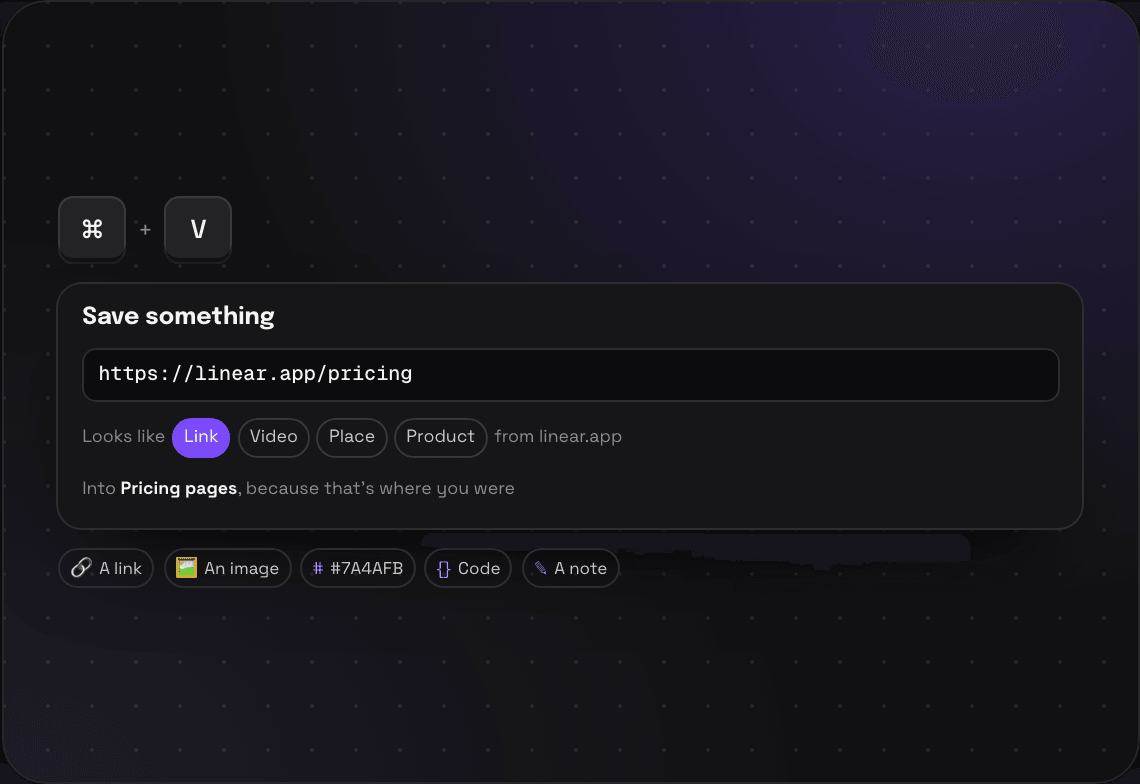
Copy a link, an image, a hex code, a snippet, or a paragraph, go to Savepad and press ⌘V. There's no box to click first. Savepad works out what you pasted, shows you what it thinks it is, and saves it into the folder you're in.
Wrong guess? Pick the right type with one click
Press N if you'd rather type it in
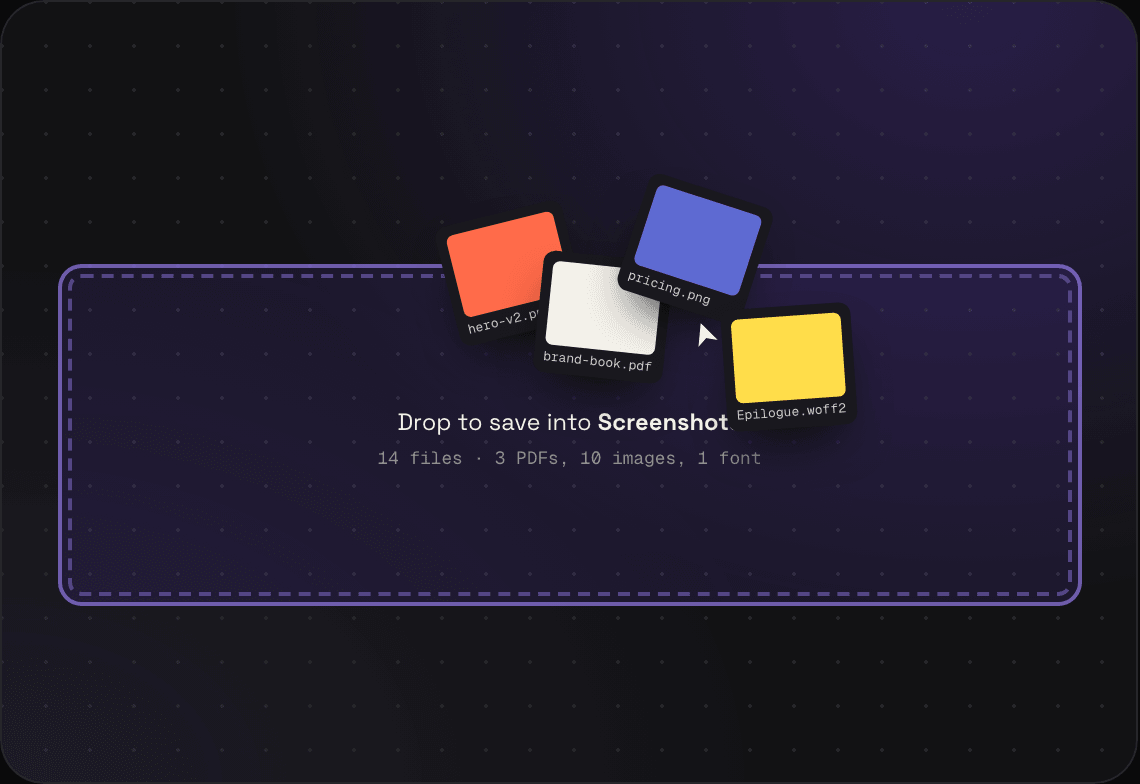
Drop to save into Screenshots
14 files · 3 PDFs, 10 images, 1 font
hero-v2.png
brand-book.pdf
pricing.png
Epilogue.woff2
➤
Drag and drop02 / 07
Drag the whole screenshots folder in.
Drag files from your desktop onto Savepad and let go: screenshots, PDFs, fonts, videos, a Figma export. Each one gets saved as what it is, into the folder you dropped it on. Your 400 screenshots from 2024 can finally leave the desktop.
Originals kept at full resolution, never recompressed
Every image gets its colours and its text read
CancelNew message↑
To:Savepad
Subject:Chai at home, the good one
Chai at homeyoutube.com
For biryani night 🙃
A few seconds later
▶
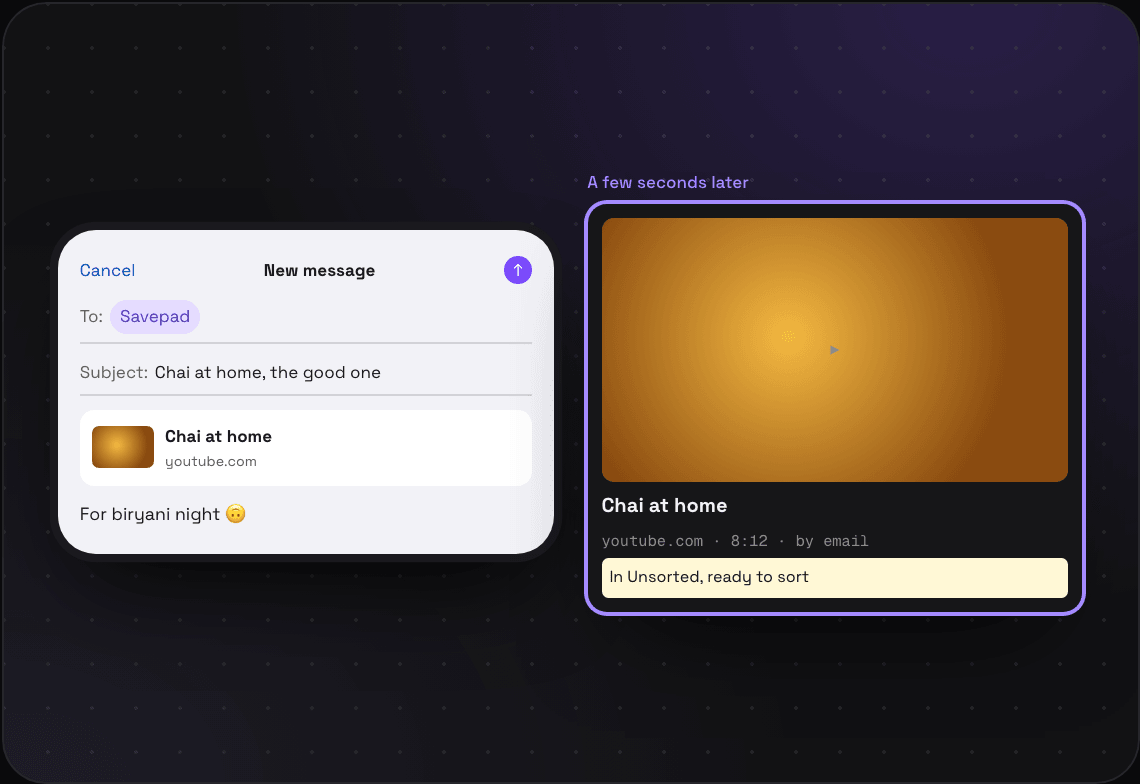
Chai at homeyoutube.com · 8:12 · by emailIn Unsorted, ready to sort
Email it from your phone03 / 07
Share it to Savepad from any app on your phone.
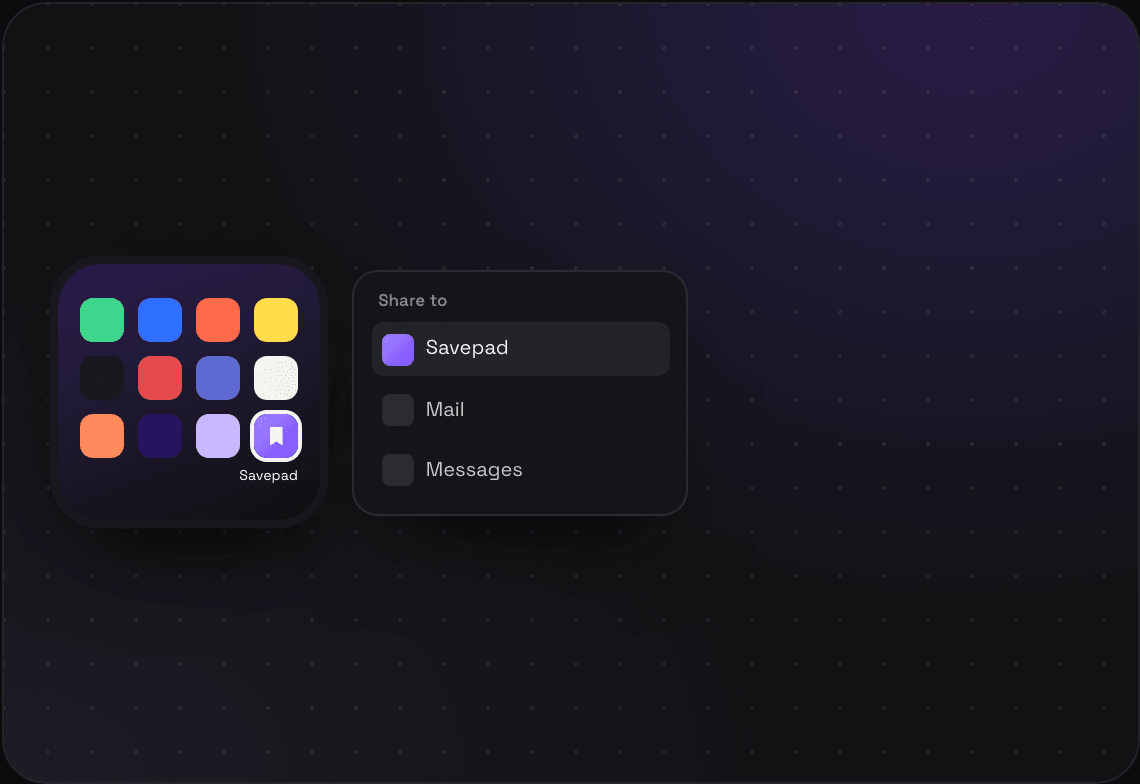
Every account gets its own email address. On your phone, hit share in any app, pick email, and send it to Savepad. The link, photo, or newsletter lands in your Unsorted a few seconds later with its preview made. Save the address as a contact called Savepad and it's two taps.
Links become pages, attachments become files, forwarded emails stay emails
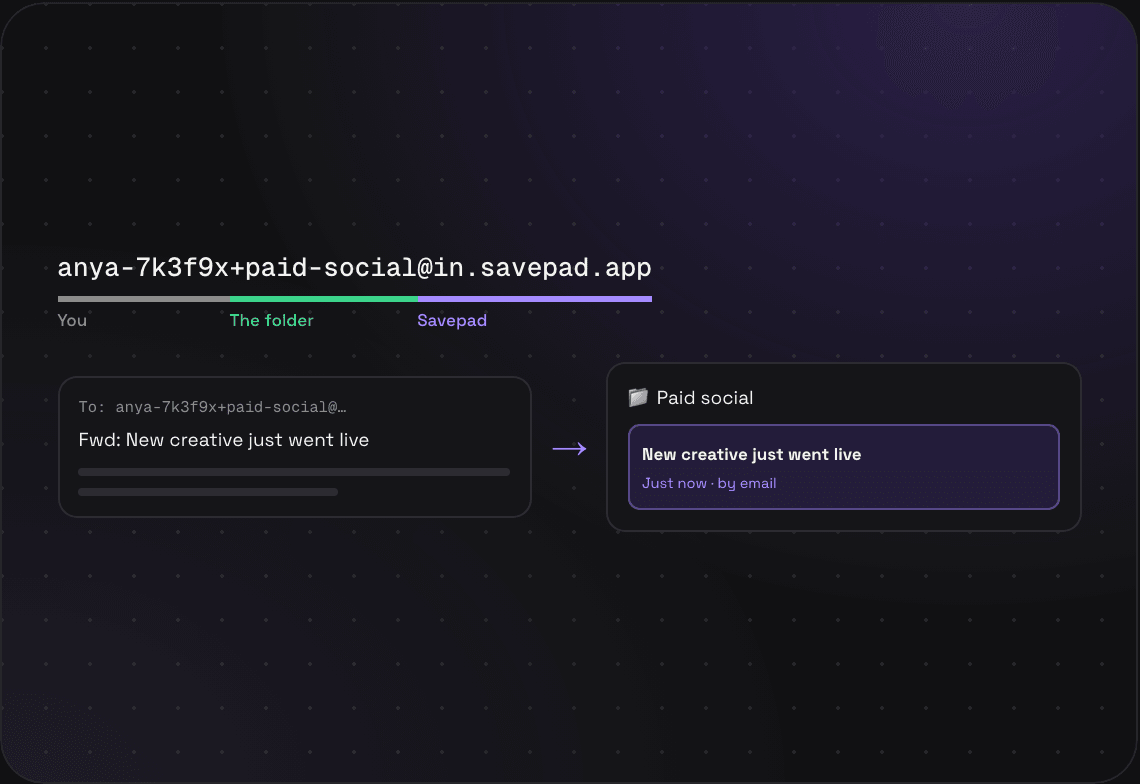
Put +paid-social right before the @ in your address and it goes straight into Paid social. Forward a competitor's launch email with +competitors and it's filed before you've closed the tab. If there's no folder with that name, it lands wherever the rest of your mail goes.
Your address is in Settings, under Saving from elsewhere
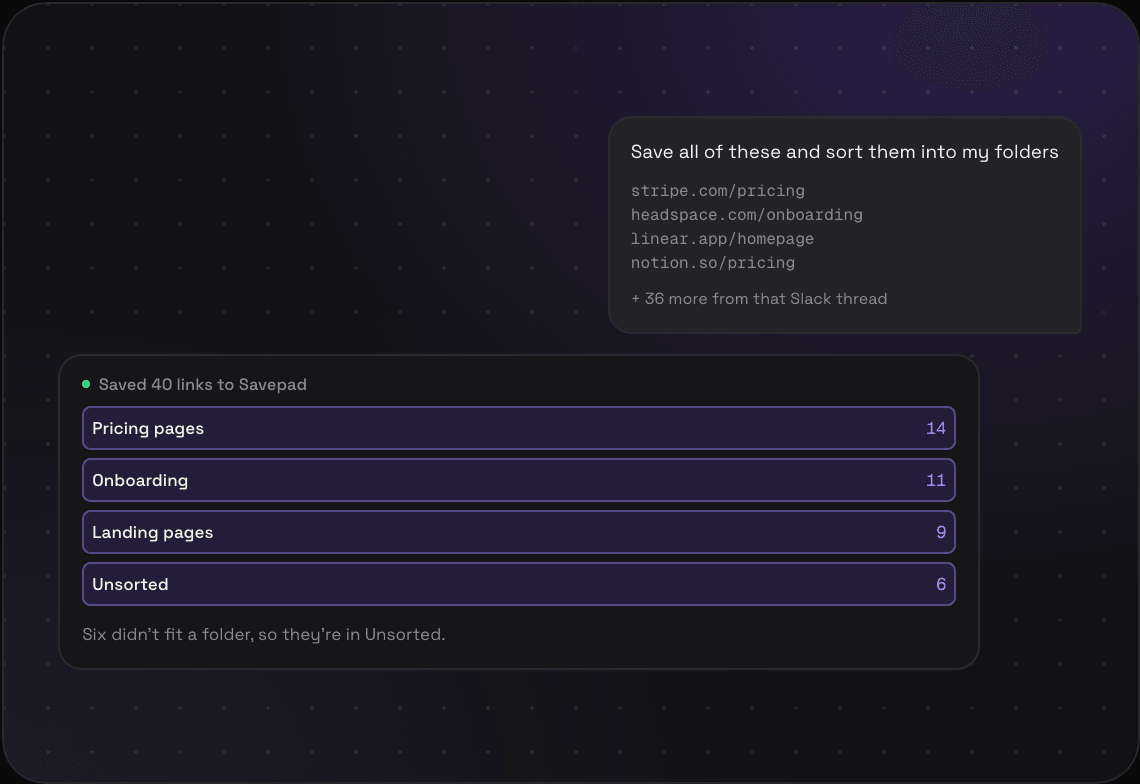
Save all of these and sort them into my folders
stripe.com/pricing
headspace.com/onboarding
linear.app/homepage
notion.so/pricing
+ 36 more from that Slack thread
Saved 40 links to Savepad
Pricing pages14
Onboarding11
Landing pages9
Unsorted6
Six didn’t fit a folder, so they’re in Unsorted.
Ask your AI05 / 07
Dump it on your AI, let it file it.
Connect Claude, ChatGPT, or Cursor to Savepad over MCP, then paste in whatever mess you've got: 40 links from a Slack thread, a Notion page called “stuff to check out”, the list you've been keeping in your notes app since 2022. Tell it to save them and sort them into your folders. It does the boring part, you check it after. Savepad itself never calls a model, your assistant does the thinking.
Turn on Full control and it can make the folders too
Works in agents you run yourself: “every Friday, save the links from my newsletters into Reading”
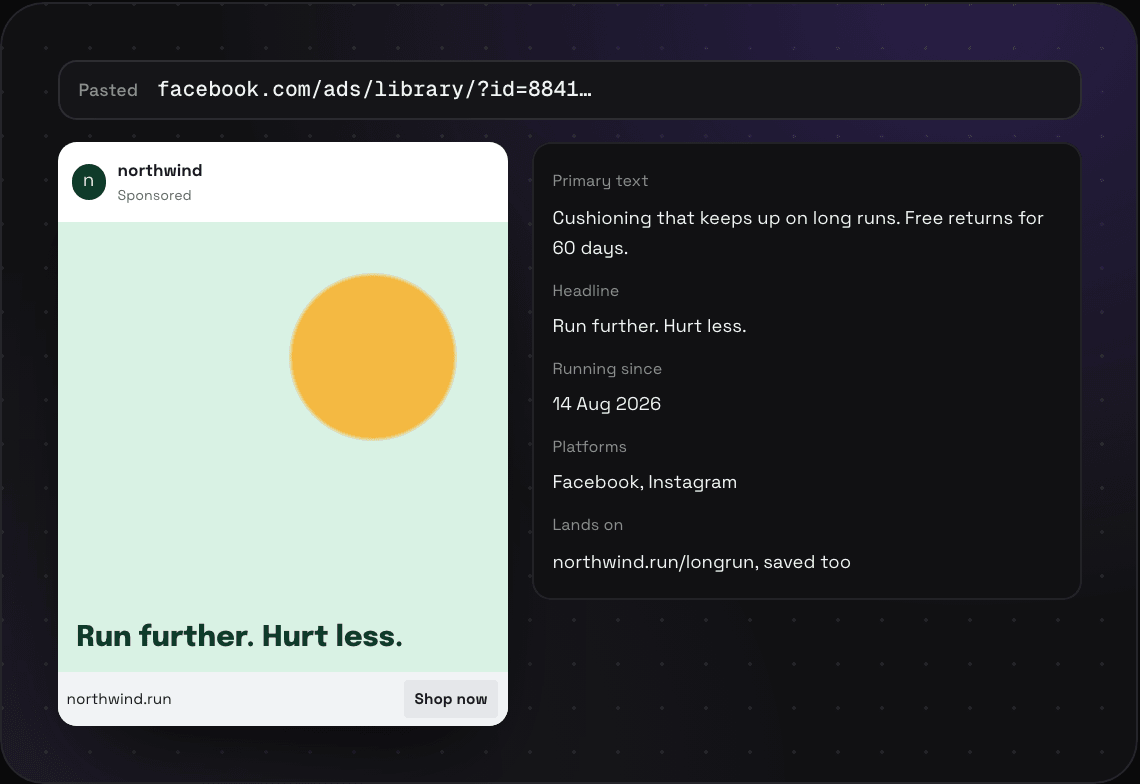
Cushioning that keeps up on long runs. Free returns for 60 days.
Headline
Run further. Hurt less.
Running since
14 Aug 2026
Platforms
Facebook, Instagram
Lands on
northwind.run/longrun, saved too
Ad library links06 / 07
Paste an ad library link, keep the ad.
Paste a link from the Meta, TikTok, LinkedIn, or Google ad library and Savepad files it as that ad, with the advertiser and the country, and one click to everything else they're running. With the browser extension, a Save button on every ad card grabs the creative, the primary text, and the headline too.
Savepad is a web app you can install. On your phone, open my.savepad.app and pick Add to Home Screen. On a laptop, install it from Chrome or Edge. It opens in its own window, and on Android it shows up in the share menu.
No app store, updates arrive on their own
Bring your old stuff.
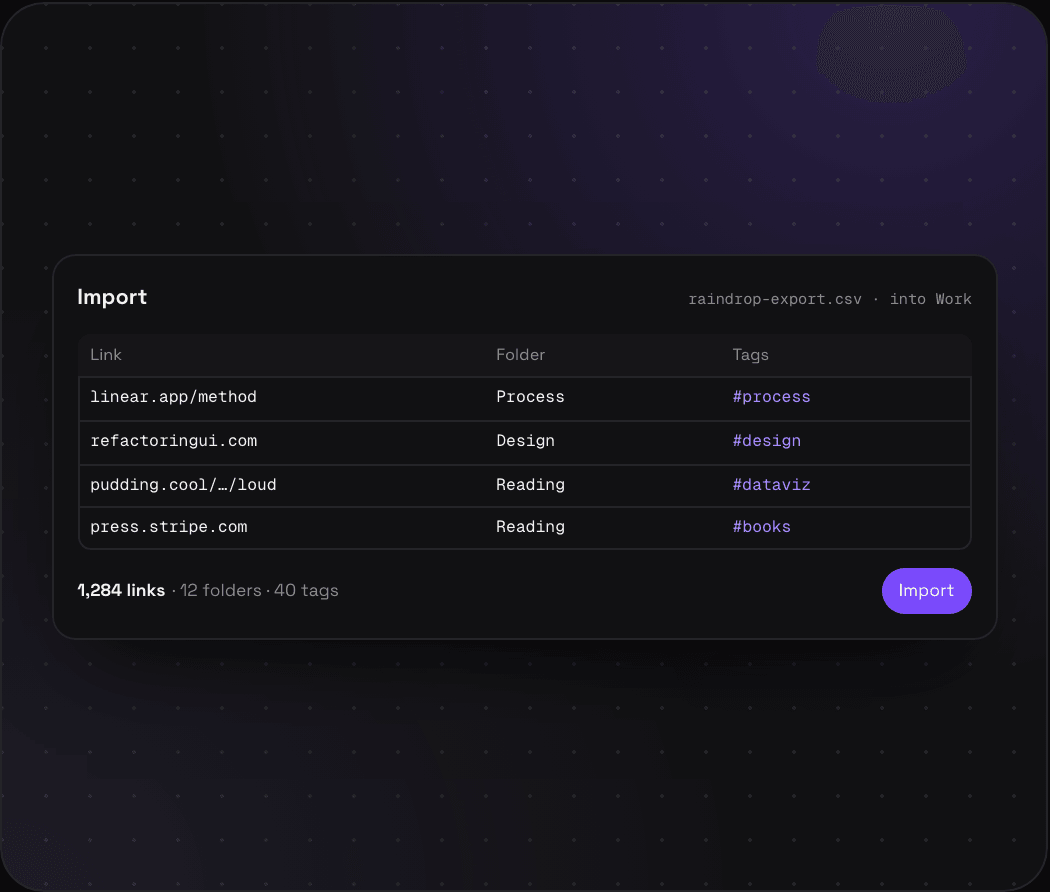
Years of bookmarks in Raindrop, a Pocket account that's shutting down, 3,000 browser bookmarks you've never opened. Pick the space, check the preview, done. Savepad then fetches every page again in the background to make fresh previews.
What you can import and what comes across
From
Export this
What comes across
Any browser
Bookmarks HTML
Folders, subfolders
Raindrop.io
CSV or HTML
Collections as folders, tags, notes
Pocket
CSV
Tags, date saved
Pinboard
JSON
Tags, notes
Instapaper
CSV
Folders
Savepad
JSON export
Folders, tags, notes
Anything else
CSV with a url column
Title, tags, folder, note, date
A doc, a thread, a messy list
Paste it into your assistant
Whatever folders and tags you tell it
Importraindrop-export.csv · into Work
LinkFolderTags
linear.app/methodProcess#process
refactoringui.comDesign#design
pudding.cool/…/loudReading#dataviz
press.stripe.comReading#books
1,284 links · 12 folders · 40 tags Import
FAQs
Is there a browser extension?
Not yet, but it's planned. For now it's paste, drag and drop, and email, which covers more than you'd think.
Can I save from my phone without installing anything?
Yes. Share to your Savepad email address from any app. Installing the web app is only for looking things up on the go.
What happens to duplicates when I import?
Savepad tells you how many you already had and doesn't save them twice.
Can I undo an import?
Yes. Every import can be undone in one click from the same page, in case you picked the wrong file.
Can my AI assistant save things for me?
Yes, and it's the quickest way to bring in a pile of stuff that isn't in any app. Make a connector link in Settings, paste it into Claude or ChatGPT, then paste in your list and tell it where things go. Cursor and Claude Code take a token instead. Savepad itself never calls a model.