…a retention cohort is everyone who signed up that week…
Note · Q3 metrics review
Week 4 retention cohort dropped after the onboarding change
Screenshot · text found
Retention cohort, weekly, last 12 weeks
Analytics handbook.pdfp. 12 / 48
4.2 Cohorts
In this handbook, a retention cohort is everyone who signed up in the same week.
Full-text search01 / 06
Type the three words you remember.
Savepad keeps the text of everything you save: every page, PDF, email, note, and code snippet. That pricing page with "pay as you grow" somewhere near the bottom? Search pay as you grow and there it is. Typos are fine.
Titles, notes, page text, PDFs, email bodies, code, and video captions
Results show the words that matched
Press / or ⌘K from anywhere
my.savepad.app/search
limited edition⌘K
AllPagesPDFsEmailsText in images
PDF
Brand guidelines 2026 · p. 4
…every drop is a limited edition, never "exclusive"…
Page
northbrew.co/summer
Cold brew, canned. Limited edition, out till August…
Email
Northbrew · Summer is here
…our first limited edition flavour in three years…
Text in your images02 / 06
Search the words inside your screenshots.
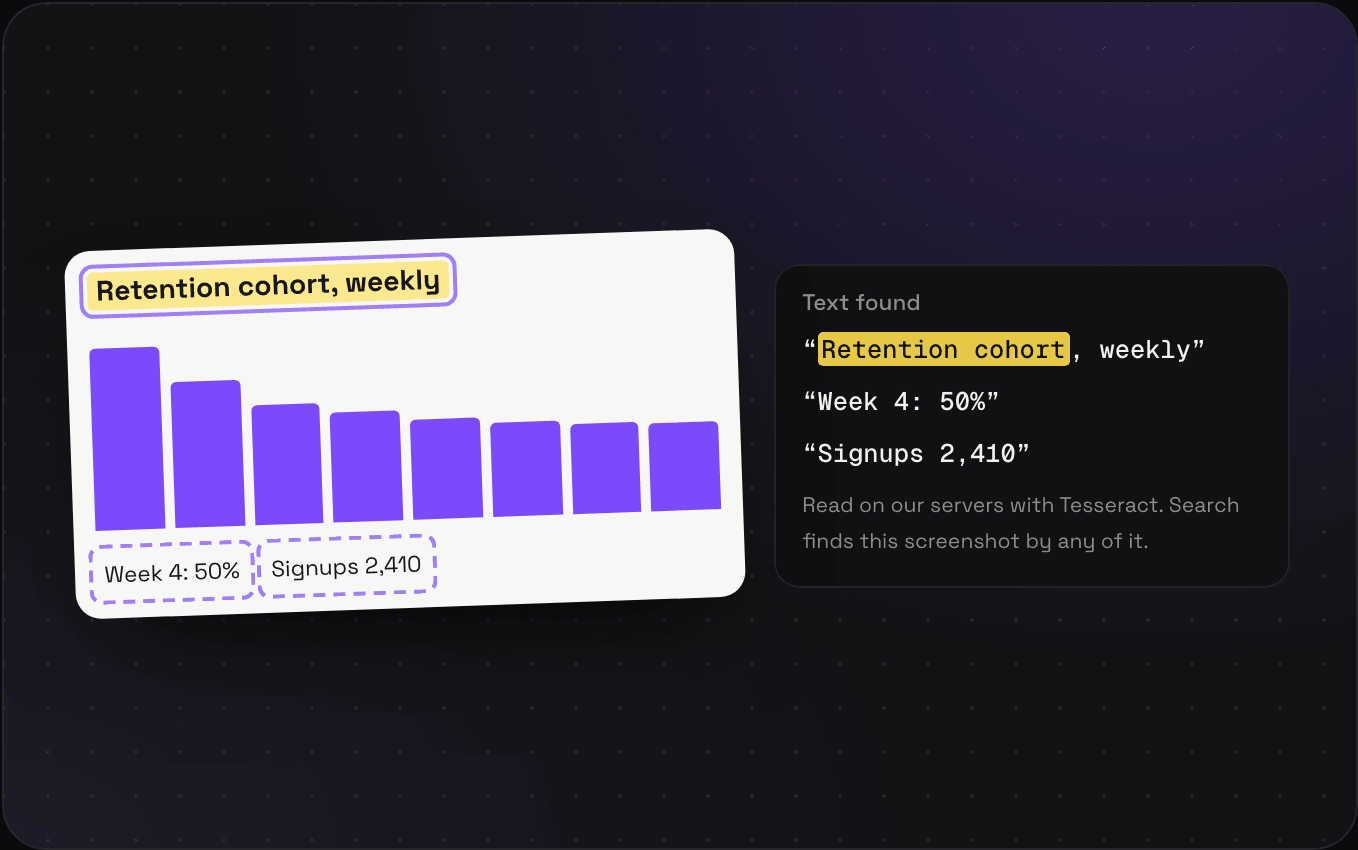
Every image you save gets read with OCR on our own servers (Tesseract, no model, nothing leaves Savepad). The dashboard screenshot from Slack, the photo of a menu in Madrid, the ad with the headline you liked: search for any word in them and they turn up.
has:ocr shows only images with text found in them
The text it found is in the save’s panel, ready to copy
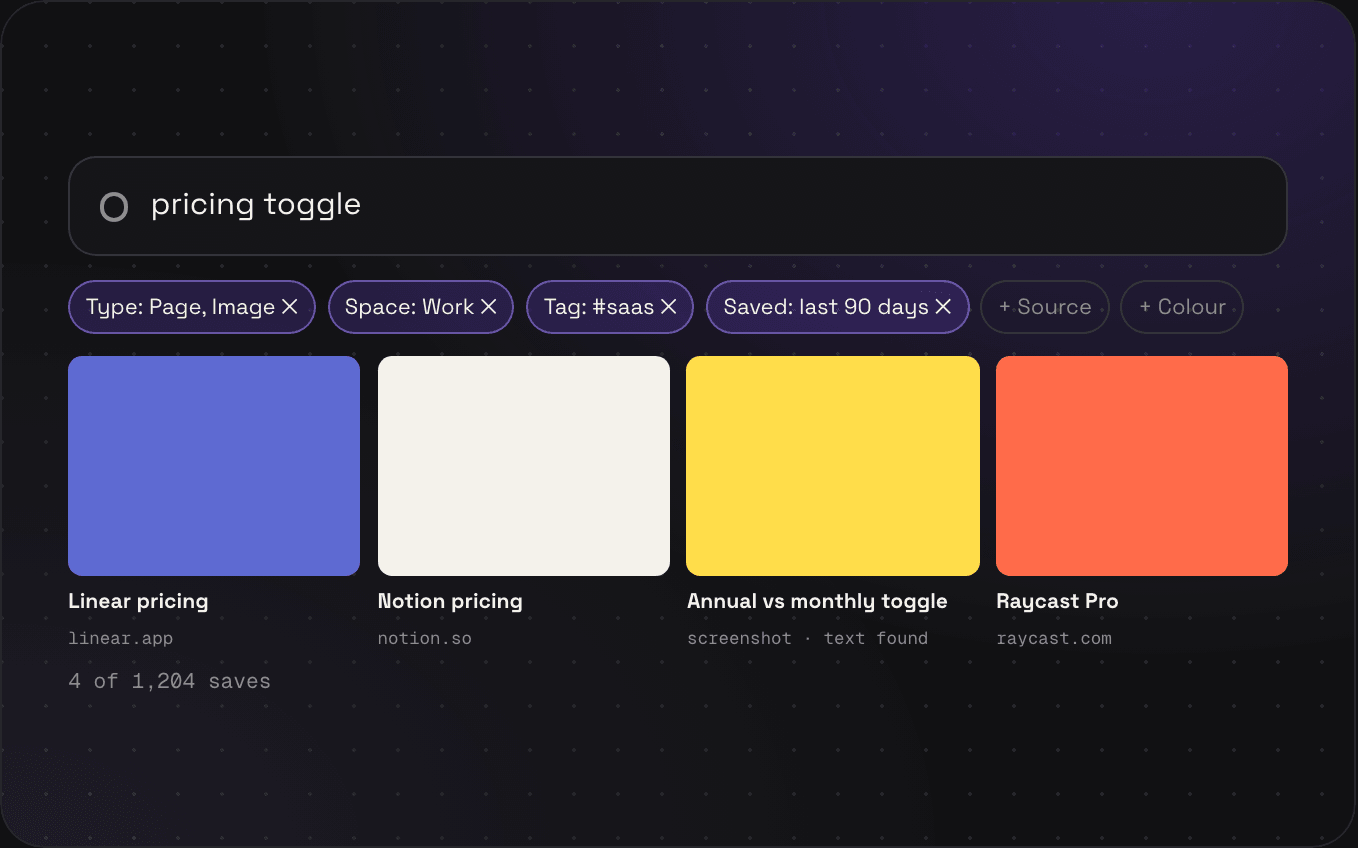
Pages, in Work, tagged #saas, from the last 90 days.
Click the filter bar and add as many as you need: type, space, folder, tag, where it came from, colour, and date. Four filters and you're down from 1,204 saves to the four you were after. Take one off with the x.
Filter by your own custom properties too
Save the lot as a view and you never build it again
pricing toggle
Type: Page, Image ✕Space: Work ✕Tag: #saas ✕Saved: last 90 days ✕+ Source+ Colour
Linear pricinglinear.app
Notion pricingnotion.so
Annual vs monthly togglescreenshot · text found
Raycast Proraycast.com
4 of 1,204 saves
Search by colour04 / 06
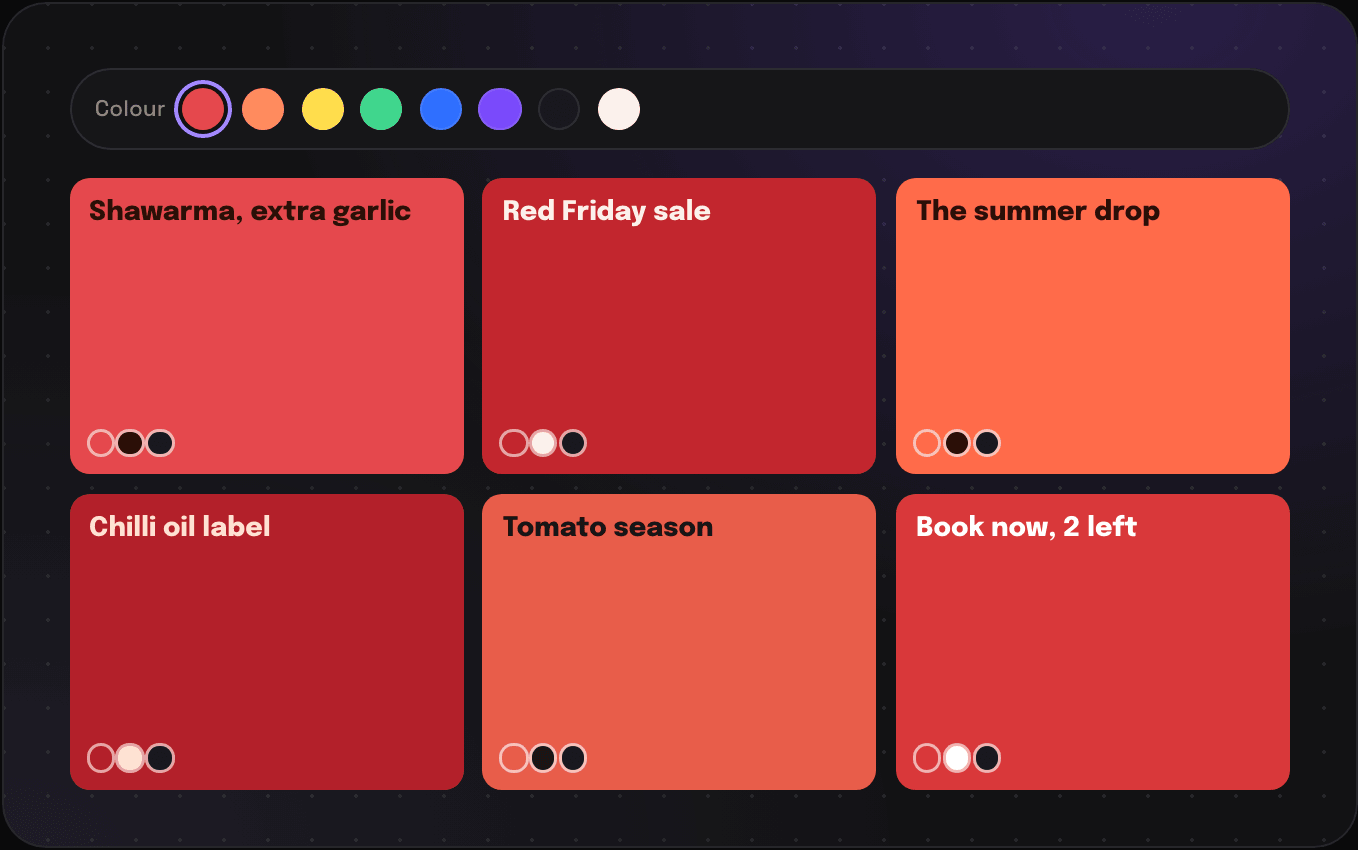
Pictures of shawarma with red in them.
That's a real search. Pick a swatch in the colour row and you get every save with that colour in it. The colours come from each save's own pixels, so nobody had to tag anything red. Add a word or two to narrow it down.
Images, screenshots, page snapshots, and video thumbnails
Colour
Shawarma, extra garlic
Red Friday sale
The summer drop
Chilli oil label
Tomato season
Book now, 2 left
Opens where it matched05 / 06
Found it on page 12? It opens on page 12.
Click a result and you land on the bit that matched: the right page of the PDF, the right line of the email. No more scrolling through a 48-page brand book for one sentence.
PDFs open on the page, emails scroll to the line
my.savepad.app/work/brand
1
2
3
4
5
6
Voice and tone
…every drop is a limited edition, never “exclusive”.
p. 4 / 38
⌘K06 / 06
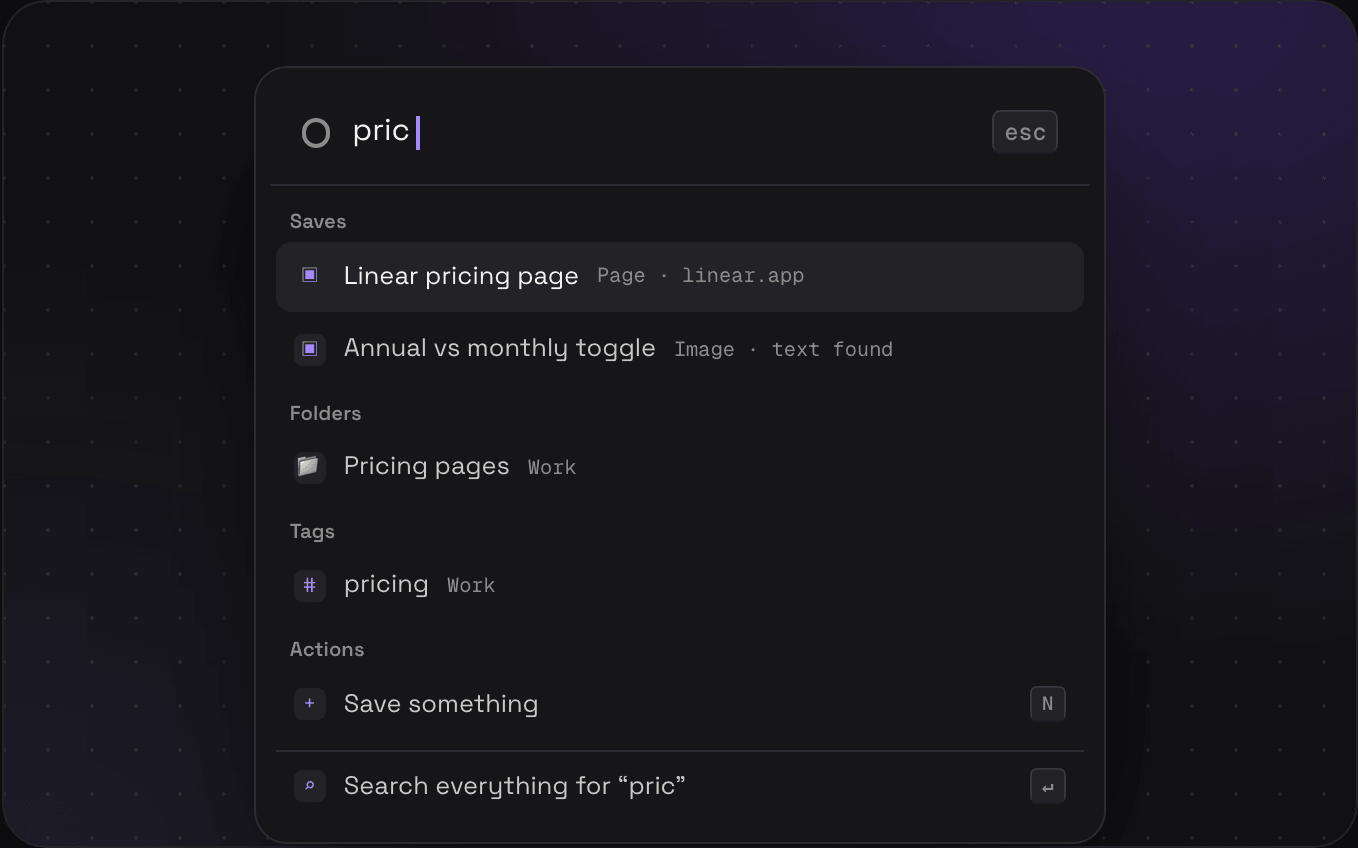
Press ⌘K and start typing.
Saves, spaces, folders, tags, and saved views come up as you type, and so do the things you'd normally click for, like saving, importing, exporting, or opening your public page. Enter goes there, Esc closes it. On Windows it's Ctrl K.
“Search everything” at the bottom runs a full search
Every filter has a word you can type straight into the search box. Mix as many as you want: type:image tag:ugc saved:30d.
type:pdf
Only PDFs. Or email, image, code, video, place…
from:stripe.com
Saves from one site
in:"Landing pages"
Saves in one folder
tag:pricing
Saves with a tag
-tag:archived
Saves without a tag
saved:7d
Saved in the last 7 days
before:2026
Saved before a date
has:ocr
Images with text found in them
FAQs
Does search use AI?
No, on purpose. It's full-text search that copes with typos, the kind databases have been good at for years. Savepad never sends your saves to a model, for search or anything else.
Does it search inside PDFs and emails?
Yes. Every page of a PDF and the whole body of an email, and results open on the page or the line that matched.
How long does OCR take on a new screenshot?
Usually a few seconds after you save it. The image shows up straight away and becomes searchable by its text as soon as the reading is done.
Is full-text search on the free plan?
Yes. Search, filters, OCR, and colour search are on every plan.