Custom properties
Add your own fields to saves in Savepad, like a client, a status, a launch date, or a budget, then find every save with the same value.
Folders and tags only go so far. Sometimes you want a client, a status, a launch date, or a budget on a save, and to find every save for that client in one click. That’s what properties are for. They’re on Light and Ultra Pro Max Plus.
Add a property to a space
- Open the space (click its name in the sidebar, or All in this space).
- Press Properties at the top.
- Give the field a name, pick its kind, and press Add the field.
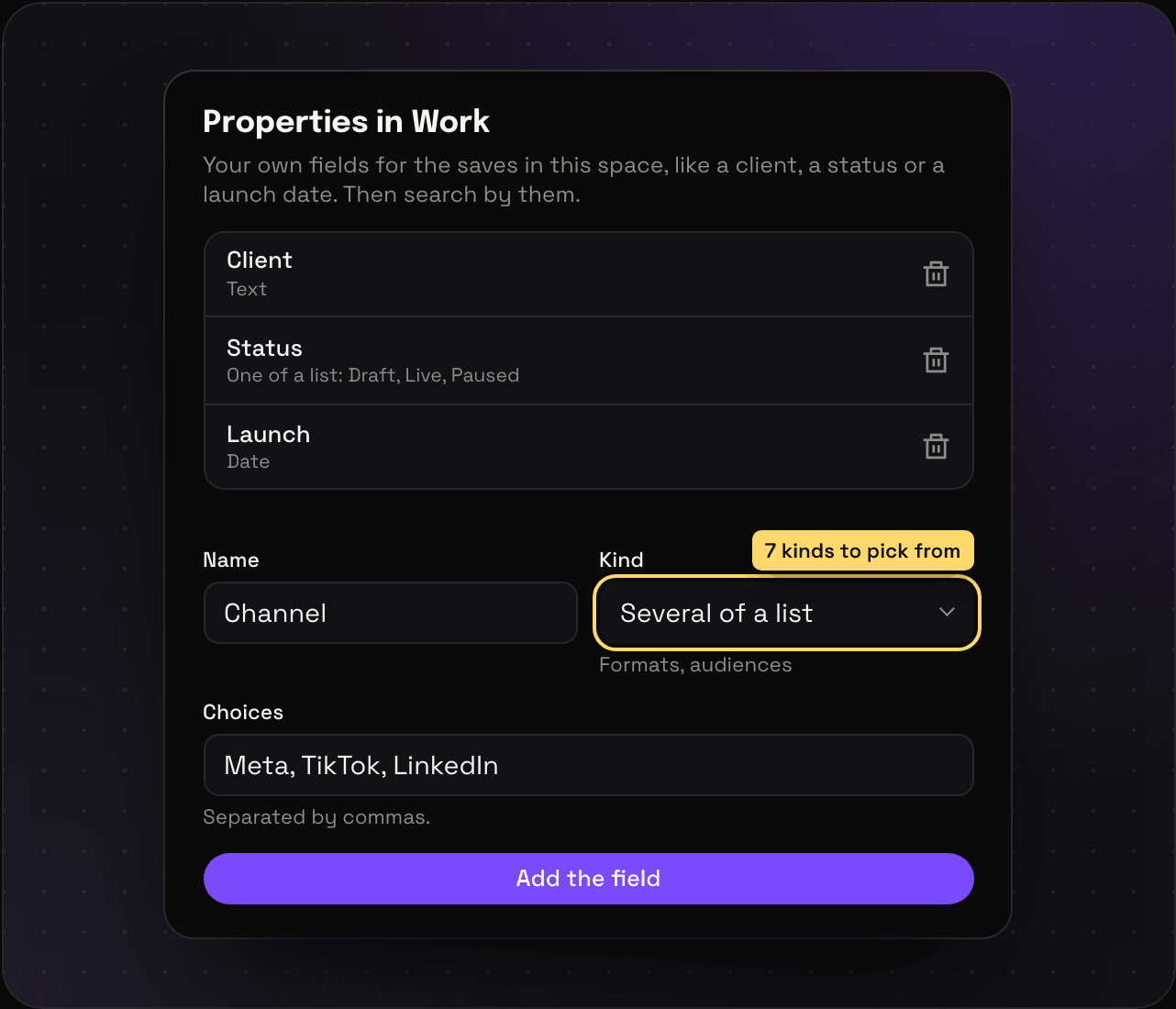
There are seven kinds:
| Kind | Good for |
|---|---|
| Text | A client, a campaign, a note to self |
| One of a list | Status, stage, channel |
| Several of a list | Formats, audiences |
| Date | Launch date, due date |
| Number | Budget, score, CTR |
| Link | The brief, the Figma file |
| Yes or no | Approved, used, stolen |
For the two list kinds, type the choices separated by commas: Draft, Live, Paused.
Each space has its own properties, up to 30.
Fill them in
Open any save in that space. Its properties are under Properties, and each one saves as you change it. Clearing one removes it.
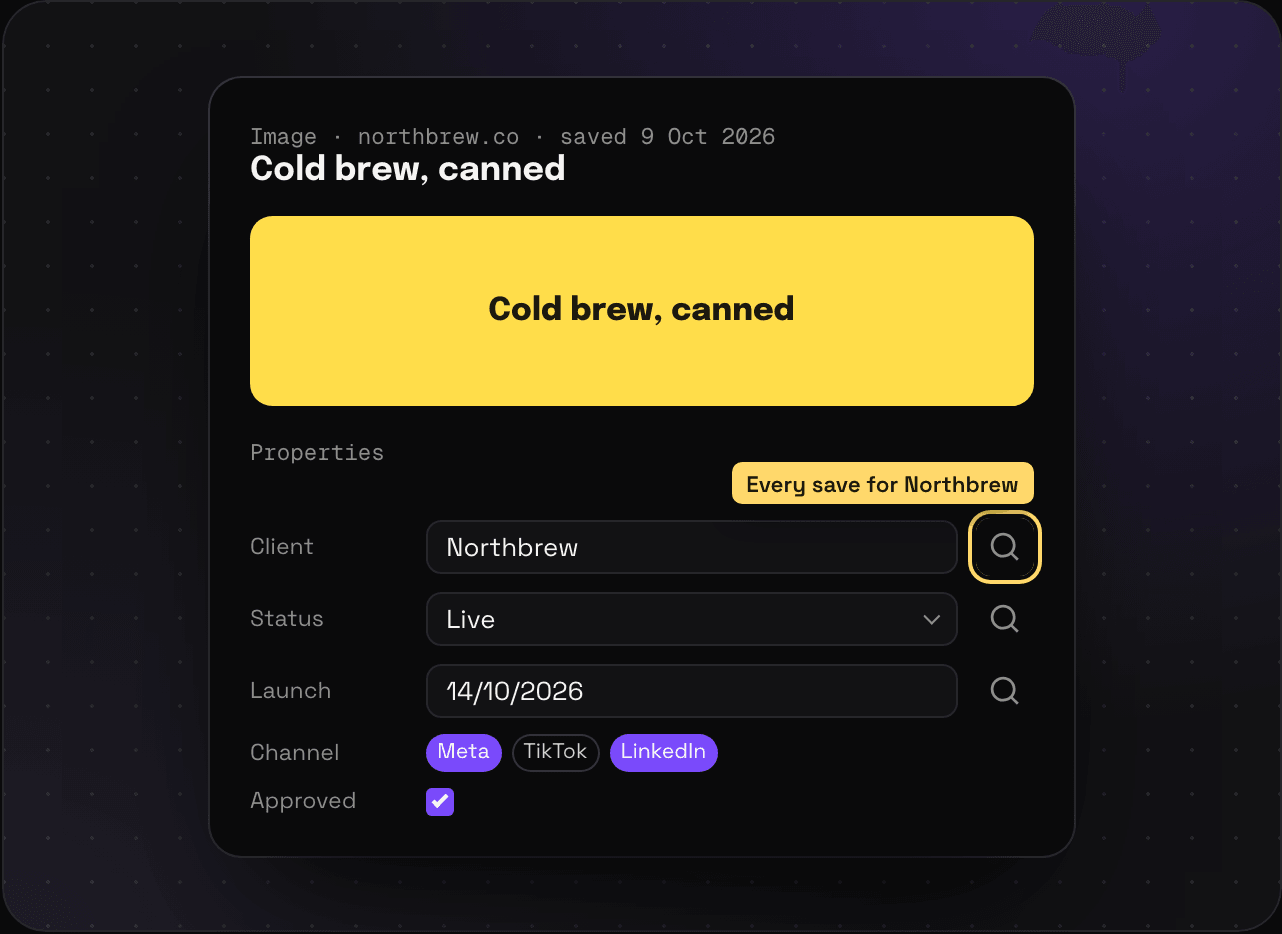
Find every save with the same value
Press the magnifier next to a value. You get every save where that property is the same, like every save for Northbrew, or everything still in Draft.
Deleting a property
Open Properties again and press the bin next to it. The field and its values go. The saves themselves are fine.