Places and maps
Save places from Google Maps, Apple Maps, and OpenStreetMap as pins on a map, with custom pins and a map view for every folder.
Not everything worth saving is on a screen. A billboard, a shop window, the taquería with the great menu, the wine bar your friend wouldn’t stop talking about. A place is a pin on a map.
How to save a place
- Paste a maps link. Google Maps (short
maps.app.goo.gllinks too), Apple Maps, OpenStreetMap, and Bing Maps links become places. - Share it from your phone. In Google Maps or Apple Maps, hit share, then email it to your Savepad address.
- Search for it. Press N, pick Place under Or pick what it is, and type the name and the town: “Casa Botella, Madrid”.
- Import your Google Maps lists, all of them at once. See importing Google Maps lists.
What you get
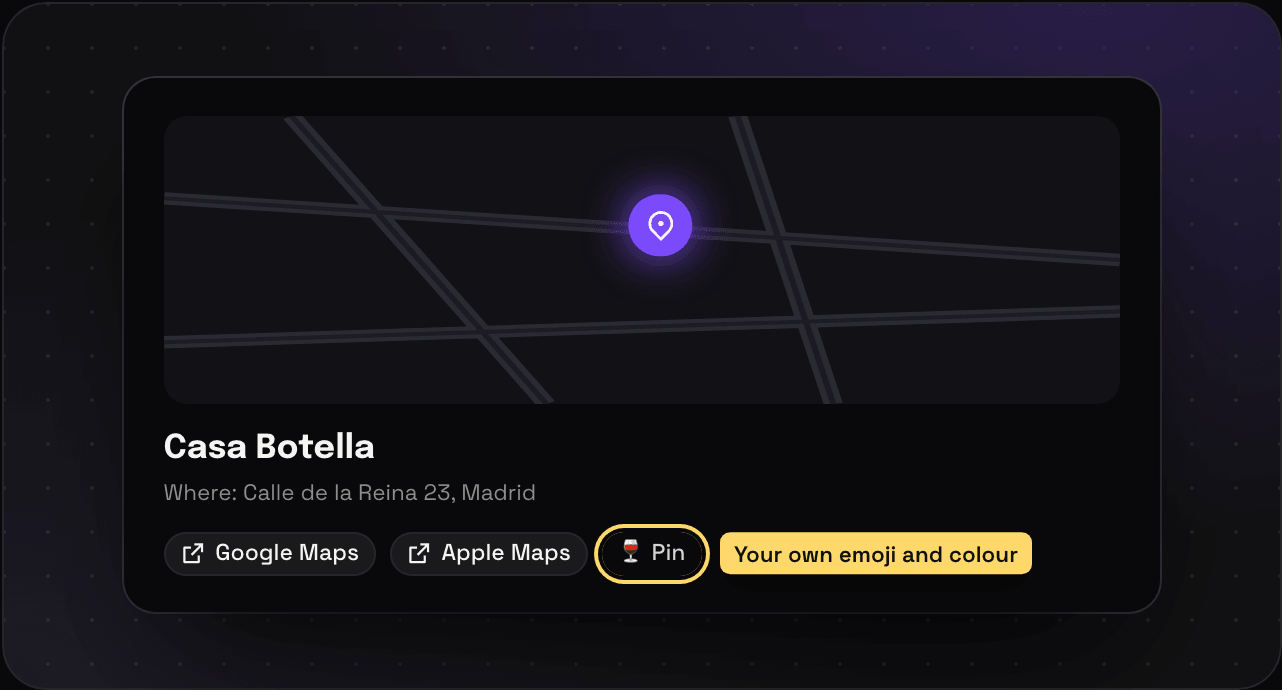
- A pin on a map, with the name and the address
- Google Maps and Apple Maps buttons, to open it in the app you actually use
- Your own pin: an emoji or an icon, in a colour. Wine glasses for bars, tacos for tacos. Your most-used pins come first.
Not on the map yet?
Some places save without a pin, usually because the maps link didn’t say where. Open the place and it says Not on the map yet, with a search box. Find it, or paste its coordinates, and it’s pinned.
A map of a whole folder
Any folder, space, or tag with places in it gets a map view next to the grid and list buttons. You see every pin at once, with the list of what’s in view beside it. Filter it by tag to see only the #must-do ones. Select a few and press Pin to style them all at once.
Search for places comes from OpenStreetMap and Overture Maps, which knows a lot more restaurants and shops.