Rules
Write rules in Savepad that file, tag, and star new saves the moment they come in, by site, link, title, type, or where they came from.
Tired of filing the same kind of thing by hand? A rule files it as it comes in. “Anything from klaviyo.com goes in Lifecycle email and gets #klaviyo.” Write it once, never think about it again. Rules are on Light and Ultra Pro Max Plus.
Make a rule
- Go to Settings > Rules and press New rule.
- Name it.
- Under When a new save’s, pick what to look at, how to compare, and the value.
- Under Then, pick a folder to put it in, tags to add, and whether to star it.
- Read the sentence at the bottom. If it says what you meant, press Turn it on.
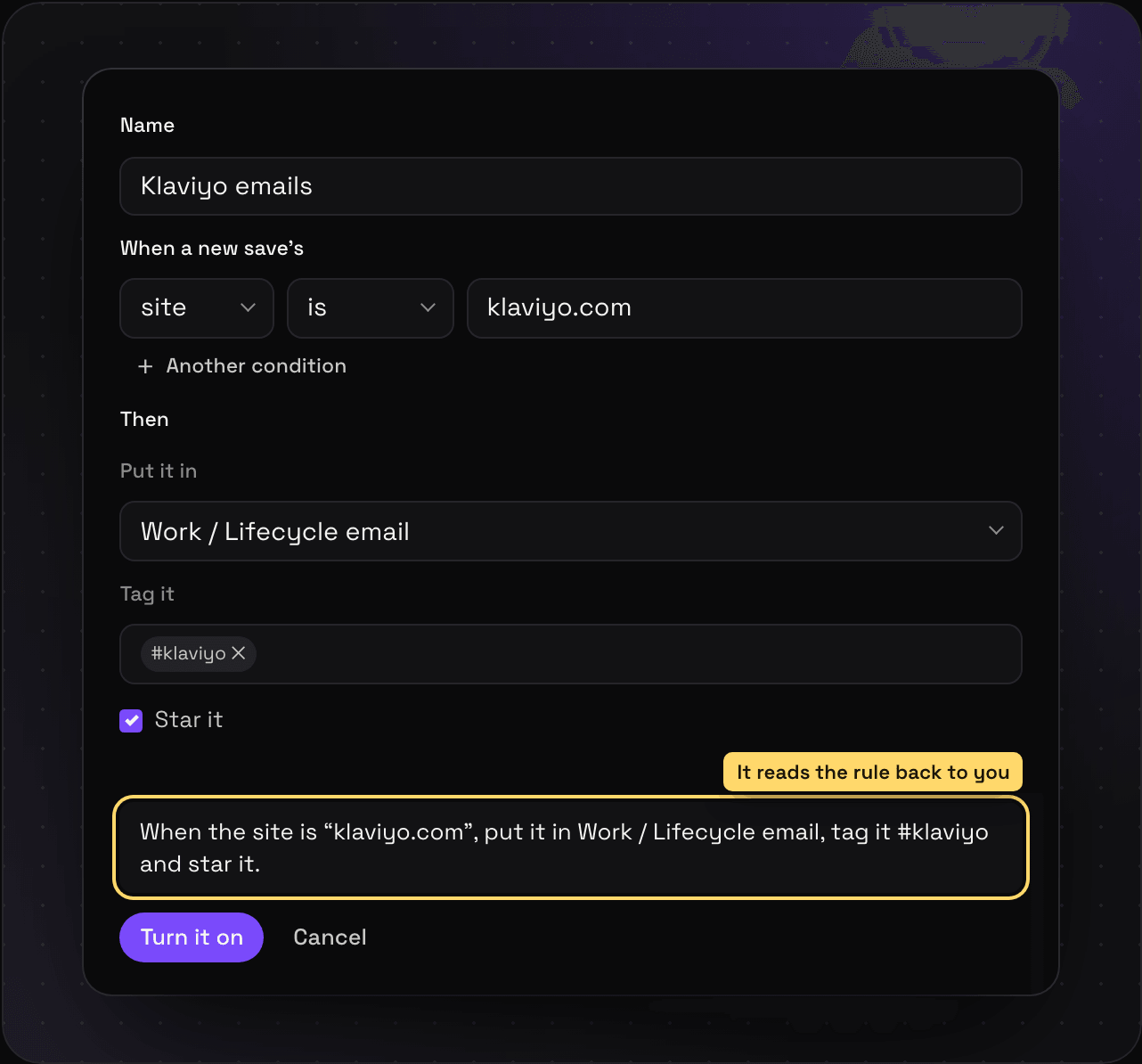
What a rule can look at
| Look at | Example |
|---|---|
| site | klaviyo.com (also catches mail.klaviyo.com) |
| link | the whole address |
| title | the save’s title |
| type | link, image, email, pdf, code… |
| came in by | web, email, import, api, mcp… |
And how to compare: is, isn’t, has, starts with, or ends with. Case doesn’t matter.
Need more than one condition? Press Another condition (up to 10), and pick All of these or Any of these.
When rules run
On every new save, however it got in: pasted, dropped, emailed, imported, saved through the API, or by your assistant.
Run it on what’s already there
New rules only file new saves. To tidy up the backlog, press Run it on what’s already saved on the rule. It tells you how many it matched.
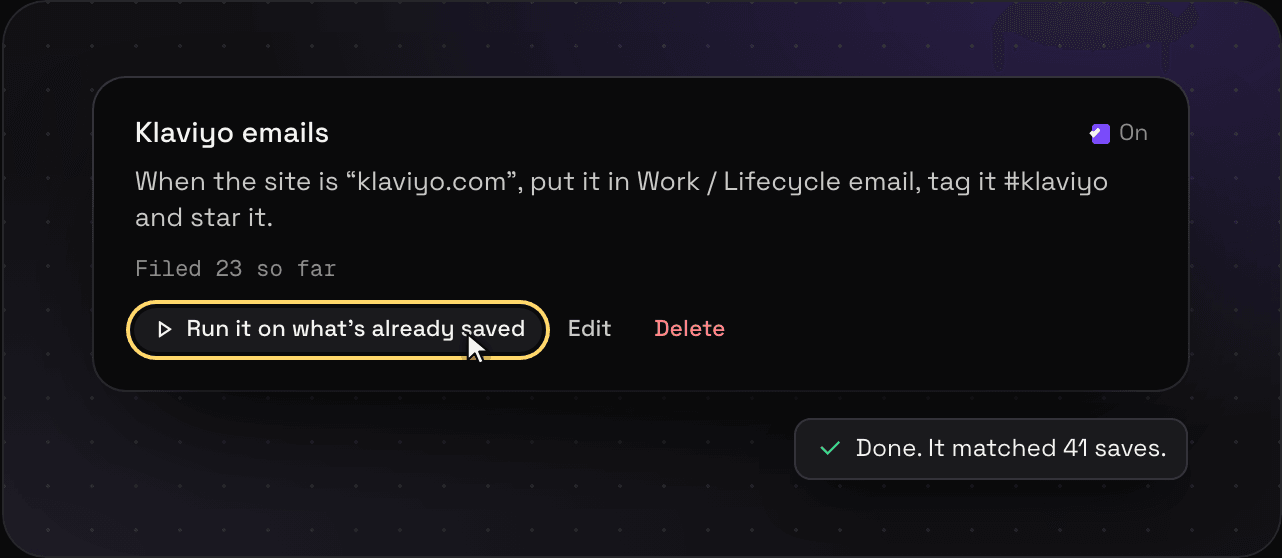
Change or stop a rule
Untick On to pause it, Edit to change it, or Delete to get rid of it. Saves it already filed stay where they are.
Rules worth stealing
- When the site is
facebook.com, put it in Paid social / Meta. - When it came in by
emailand the site isklaviyo.com, tag it #lifecycle. - When the type is
pdf, put it in Reports. - When the title has
pricing, tag it #pricing and star it.