Import Google Maps lists
Move your saved Google Maps lists into Savepad through Google Takeout, with every place pinned on a map and your notes kept.
Years of “Want to go” pins in Google Maps? Bring them over. Each list becomes a folder, each place a pin on a map, with your notes.
Get your lists out of Google
Google doesn’t let anything read your saved lists directly, so they come out through Takeout.
- Go to Google Takeout.
- Press Deselect all.
- Scroll down and tick Saved. Just that one.
- Press Next step, then Create export.
It’s small and usually ready in a few minutes. Google emails you a zip.
Bring them in
- In Savepad, go to Settings > Import and export.
- Pick the space under Into, and choose the zip.
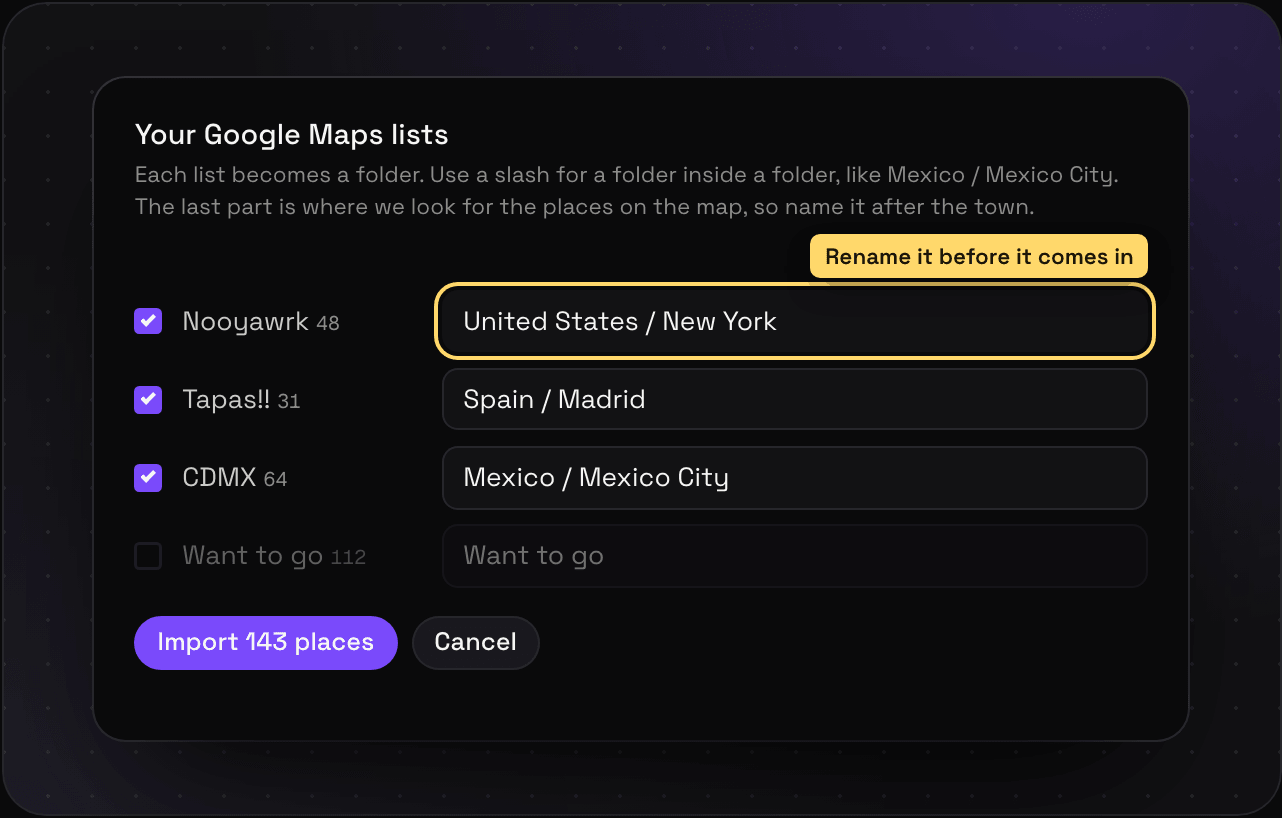
- Savepad shows every list. Untick the ones you don’t want, and name each list’s folder.
- Press Import.
Name the folders well
A slash makes a folder inside a folder: Mexico / Mexico City. And the last part should be the town, because that’s where Savepad looks for the places. “Nooyawrk” won’t find much. United States / New York will.
How places get pinned
Takeout’s places have no coordinates in them, just a name. So Savepad looks each one up by its name, near the town in the folder’s name, on OpenStreetMap and in Overture Maps (which knows a lot more restaurants, bars, and shops). It takes about a second a place, so a list of 300 is a five-minute coffee.
Most places land on the map. The ones neither knows by that name save without a pin. Open one and use the search box to find it, or paste its coordinates. See places and maps.
On Free
Free keeps 150 saves, so a big Takeout wants Light.