Images and screenshots
Save screenshots, photos, and ads, search the words inside them, and copy their colours. PNG, JPEG, WebP, HEIC, GIF, and SVG.
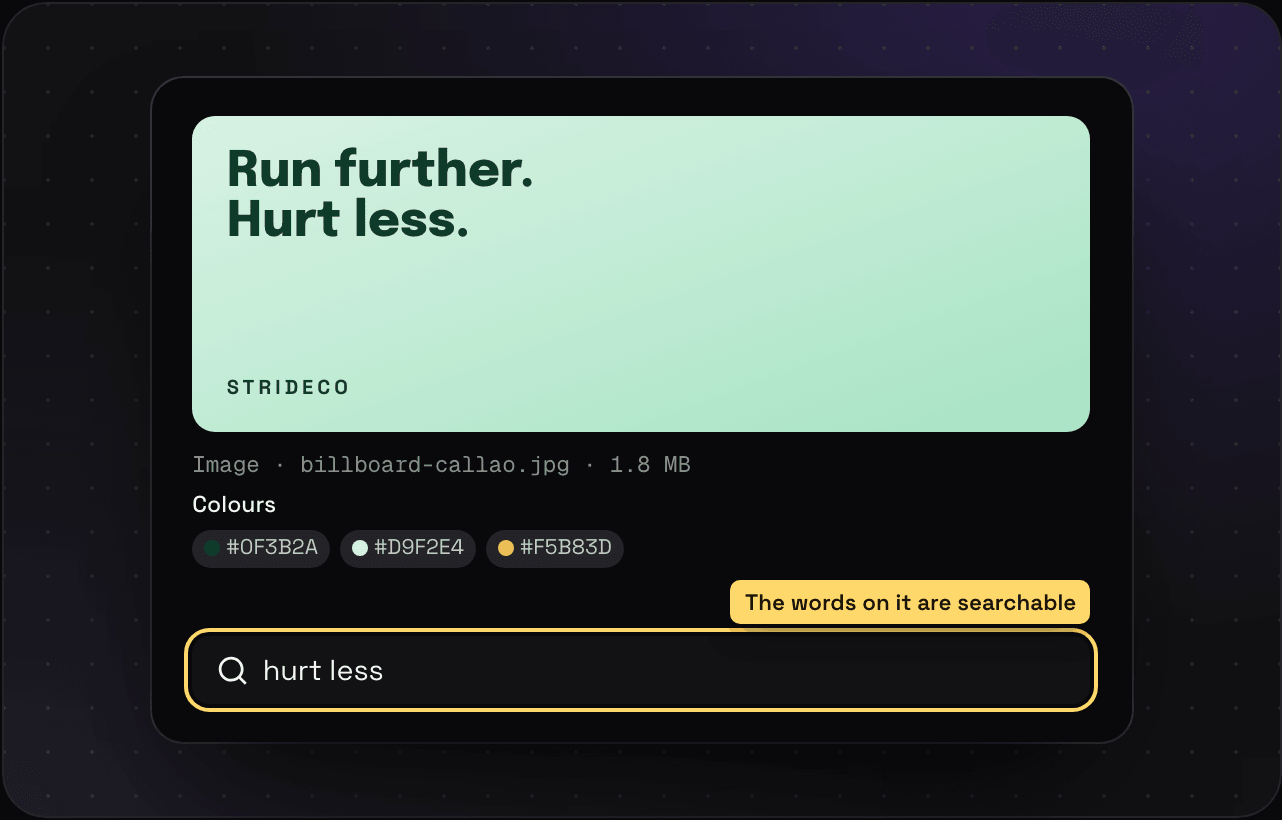
That folder on your desktop called “Screenshots” with 400 files in it? This is where it goes. Savepad reads the words in every image, so you can search a screenshot like it’s a web page.
How to save images
- Paste a screenshot straight from your clipboard with ⌘V. On a Mac, ⌘⇧⌃4 copies a screenshot instead of saving a file.
- Drag and drop one image, or a whole folder at once.
- Email them to your Savepad address from your phone. A mail with only screenshots saves just the screenshots.
- The save dialog: press N and drop them in.
PNG, JPEG, WebP, AVIF, GIF, HEIC, SVG, BMP, and TIFF all work.
What you get
- The words in it. Savepad reads text in images with OCR, on our own servers. Search “hurt less” and the billboard photo shows up. Add
has:ocrto a search to see only images with text found in them. - Its colours, as hex codes. Click one to copy it, or search your library by colour.
- No location. GPS data from your phone’s camera is stripped when you save.
Sizes
Free takes images up to 500 KB each, which is plenty for screenshots. Light takes images up to 5 MB and Ultra Pro Max Plus up to 20 MB. Big photos straight off a camera need a paid plan, or a quick resize.
Tips
- Name it after the brand, not “Screenshot 2026-03-14 at 11.02”. Click the title to rename.
- Got the link too? Save both into the same folder, or keep them as one in a collection.