Emails and newsletters
Save marketing emails and newsletters by forwarding them or dropping in an .eml. They open the way they arrived, at desktop or phone width, with no trackers.
Cart reminders, welcome flows, the newsletter with the subject line you wish you’d written. Savepad keeps emails as emails, so they open the way they landed in the inbox. Emails are on Light and Ultra Pro Max Plus.
How to save an email
- Forward it to your Savepad address. Make yours in Settings > Saving from elsewhere. A forward keeps the brand as the sender, not you. Add
+folder-namebefore the @ to file it on the way in. Saving from your phone has the details. - Drop in an
.emlfile. In Apple Mail, drag the email to your desktop. In Gmail, open it, press the three dots, then Download message. - Screenshot it, if you only want the look. Then it’s an image.
What you get
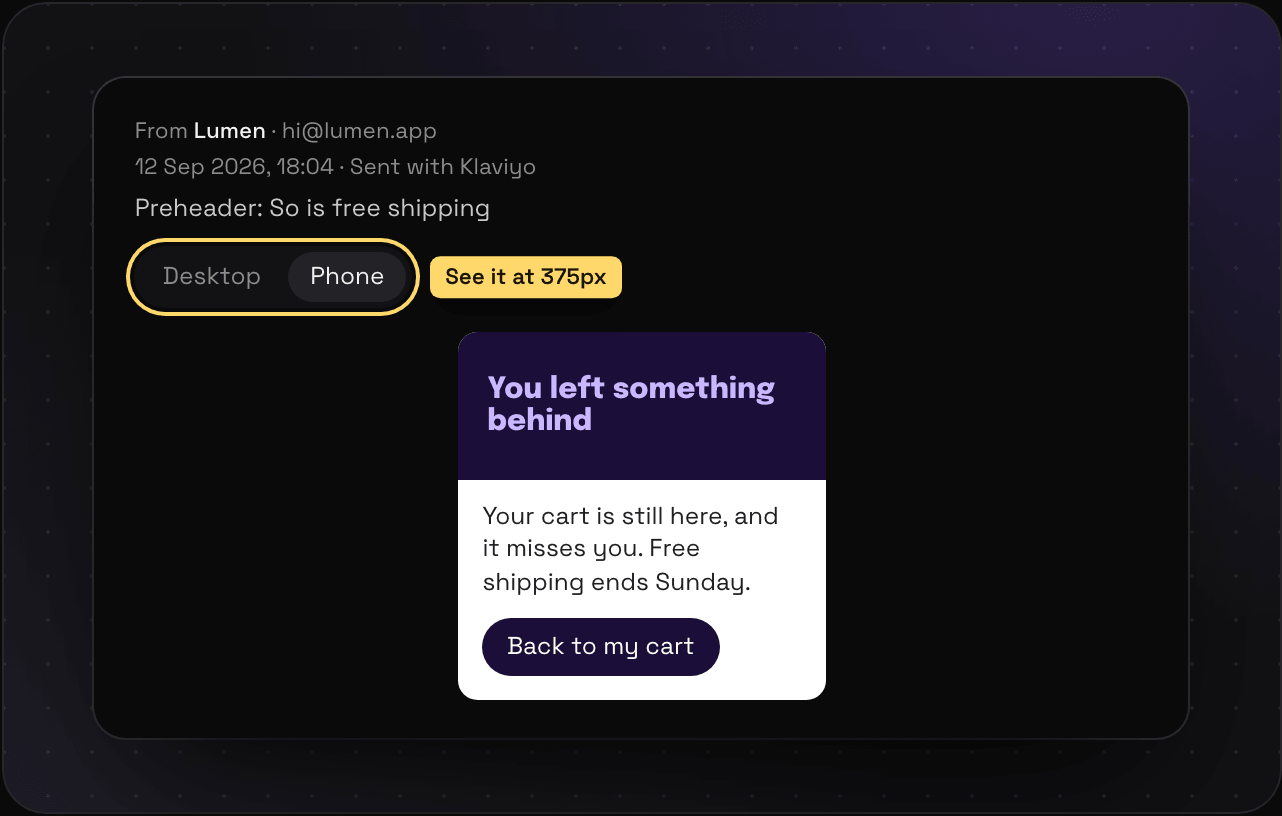
- The sender, the subject, the preheader, and the date it went out
- Which tool sent it, like Klaviyo or Mailchimp, worked out from the email’s headers
- A Desktop and Phone switch, so you can see it at 375px
- The original
.eml, to download
No trackers
Marketing emails are full of tracking pixels. Savepad copies the email’s images when it arrives and shows you our copy, so opening a saved email later never tells the sender you looked.
Keeping a whole flow
One email is nice. The whole onboarding run is better. Put them in a sequence and they stay in order, from day 0 to “your trial ends Friday”.
Searching them
Every word in an email is searchable. Add type:email to only search emails, or from:lumen.app for one sender. Search has every filter.