Every way to save
Paste, drag and drop, the save dialog, email, your phone, an assistant, an import, or the API. Every way into Savepad, and when to use which.
Savepad has one rule for saving: you shouldn’t have to tell it what something is. Paste a link and it’s a link. Paste #7A4AFB and it’s a colour. Drop a PDF and it’s a PDF. It works that out with plain old pattern matching, no AI involved.
Paste it anywhere
Copy something, click anywhere in Savepad that isn’t a text box, and press ⌘V (Ctrl V on Windows). It saves. This works for:
- Links. Most become a web page. YouTube, Vimeo, Loom, TikTok, Wistia, Twitch, and Dailymotion links become videos. Google Maps, Apple Maps, OpenStreetMap, and Bing Maps links become places. Links from big recipe sites become recipes. Meta, TikTok, LinkedIn, and Google ad library links get their ad details.
- Images you copied, like a screenshot straight off your clipboard.
- Hex codes. One or a whole row of them, and you get a colour or a palette.
- Code. Savepad spots code and guesses the language. Wrap it in three backticks with a language name if you want to be sure.
- Anything else becomes a note.
If you’re inside a folder when you paste, it goes into that folder. If not, it goes into Unsorted.
Drag and drop
Drag files onto the Savepad window. One file, twenty, or a whole folder of screenshots from your desktop. Each file becomes its own save, and Savepad picks the type from the file: images, PDFs, .eml emails, fonts, audio, video, GPX and KML routes, and documents.
The save dialog
Press N or the Save button at the top. Paste, type, or drop into the big box, and Savepad tells you what it thinks it is before you save. That’s also where you pick the folder, add tags, and write why you saved it.
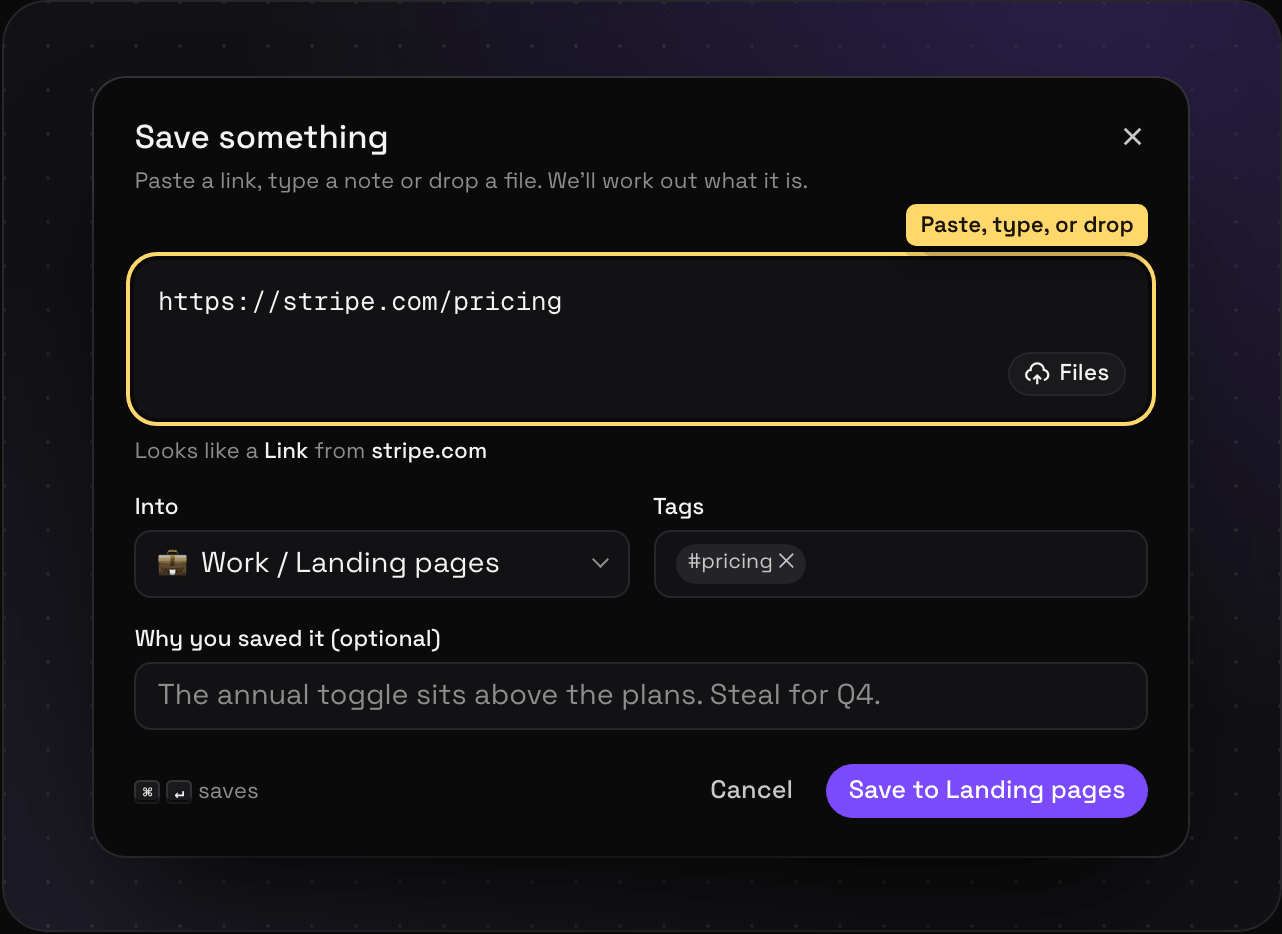
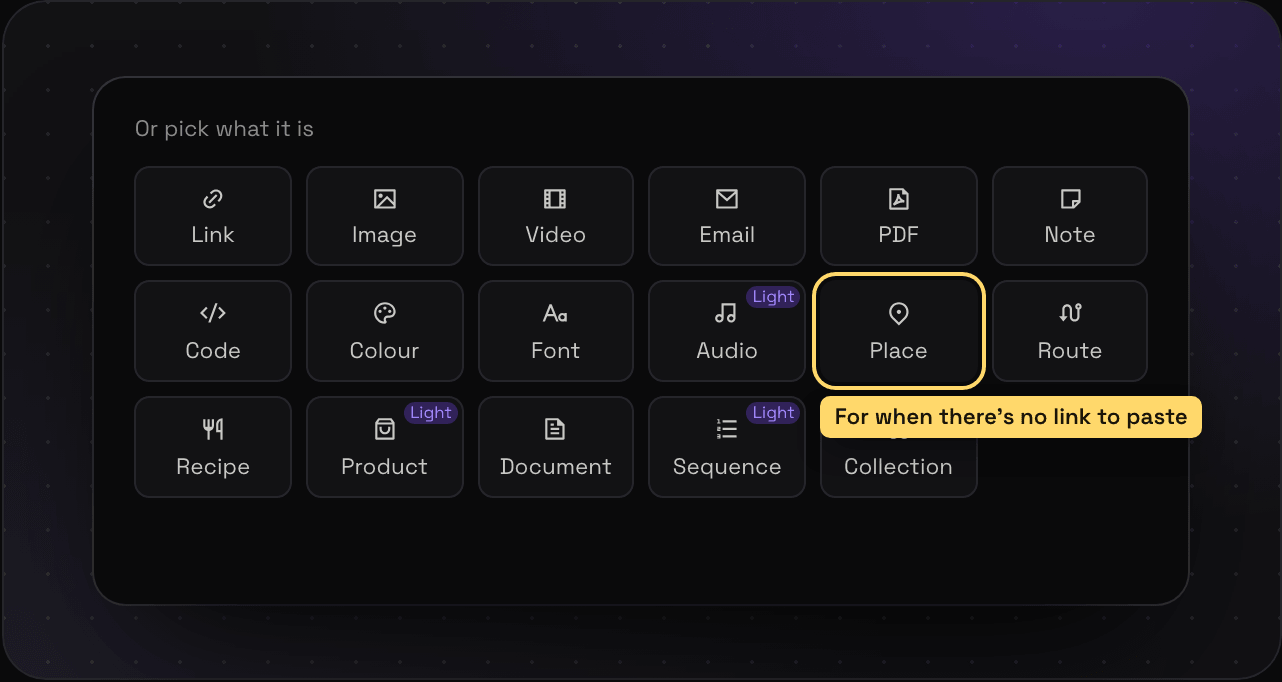
Under the box there’s Or pick what it is. That’s for the things you can’t paste: a place without a maps link, a sequence, or a collection. You can also use it to force a type, like saving a product page as a Product instead of a plain link.
Press ⌘↵ to save without reaching for the mouse.
From outside Savepad
- Email. Every account gets its own address. Forward things to it from any phone or inbox. See saving from your phone.
- The share menu on Android. Install the app from Chrome and Savepad shows up when you hit share.
- Your assistant. Claude, ChatGPT, Cursor, and friends can save for you once they’re connected. See saving with your assistant.
- An import. Bring a whole library from Raindrop, Pocket, your browser, or a CSV. See importing from other apps.
- The API, for your own scripts and Zapier. See the API reference.
Every type, in detail
Each type has its own page with how to save it and what you get:
- On the web: links and web pages, ad library links, videos, recipes, and products
- Pictures and files: images and screenshots, PDFs, documents, emails, fonts, and audio
- Things you write: notes, code snippets, and colours and palettes
- Out in the world: places and maps and routes
- Saves made of saves: sequences and collections
What counts as a save
Every link, image, note, or file is one save. Free keeps 150 of them, Light and Ultra Pro Max Plus have no limit. Binned saves count until the bin empties. Plans and limits has the details, and what happens after you save covers what Savepad does with each one.