Reading mode
Read any saved article in Savepad without the ads, pop-ups, and cookie banners, in light, sepia, or dark, at the text size you like.
Saved a long article to read later? Reading mode shows you just the words and pictures, the way you’d want them. No cookie banner, no newsletter pop-up, no “you have 2 free articles left”.
Open it
Open a saved link and switch from Details to Reading mode at the top. It tells you how many minutes it’ll take. Use ← and → to flip between the two.
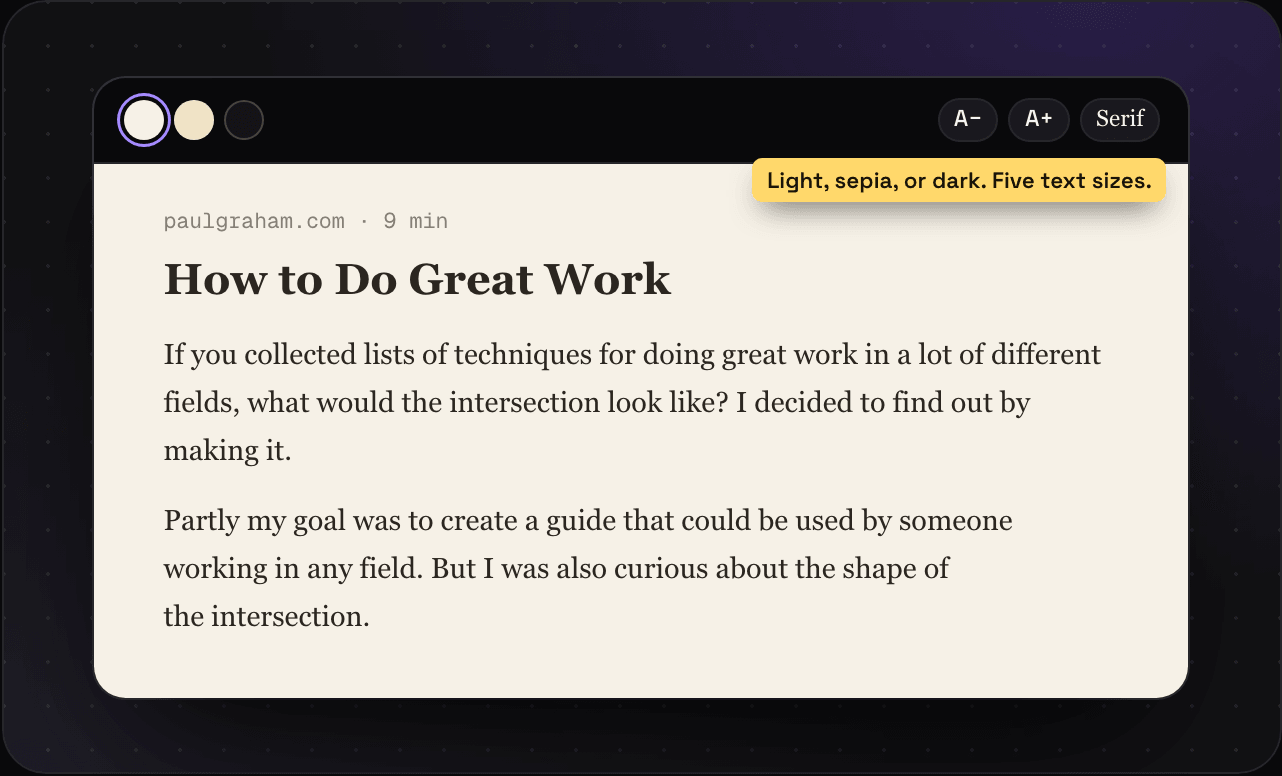
Make it yours
- Page colour: light, sepia, or dark
- Text size: five sizes, with the smaller and bigger buttons
- Serif or sans
Savepad remembers what you picked, in that browser.
What works
Any page with a few paragraphs of text: articles, blog posts, essays, docs, newsletters on the web. Savepad keeps a reading copy when you save the link, so it still works when the page changes or goes away.
Pages without much text (a homepage, a pricing table) don’t get reading mode. Their full-page screenshot is under Details instead.
Recipes get their own view with the ingredients and steps. See recipes.